


How to Set Animation Wallpaper in iPhone - iOS [Video or GIF]
Animation Wallpaper gives your Lock Screen real motion using Live Photos so the image plays when you wake your device.
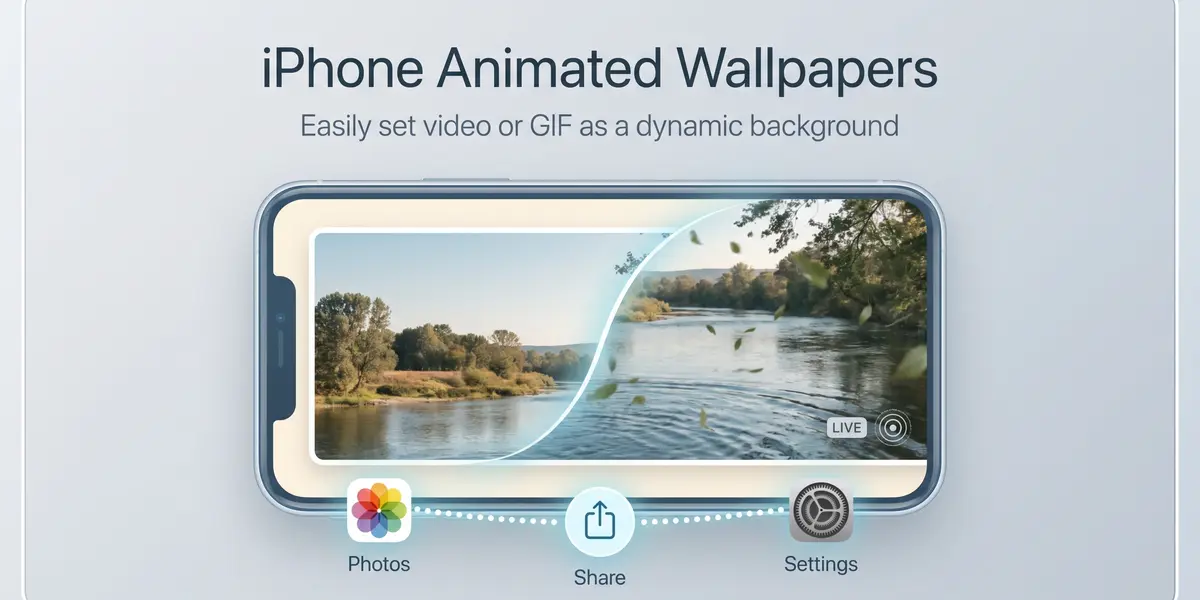
Animation Wallpaper gives your Lock Screen real motion using Live Photos so the image plays when you wake your device. It takes just a few taps in Settings and works on iOS 17 or later without any extra cost.
You can set an animated wallpaper by using a Live Photo on iOS 17 or later. The short clip plays automatically when you wake the device so your screen feels more alive each time you glance at it. This trick starts right in the Settings app. Many people enjoy how it brings favorite memories to life without complicated steps or third party tools getting in the way.
How Do I Add an Animated Wallpaper?
The process begins in Settings where you tap Wallpaper first of all. Next you select Add New Wallpaper then Photos followed by Live Photo so you can pick the exact one you like. Make sure the play button stays on for automatic motion after that. Tap Add and choose Set as Wallpaper Pair to complete everything nicely. This sequence feels straightforward once you try it a single time.
Also Try Fake Broken Screen Wallpapers
What Is a Live Photo Wallpaper?
A Live Photo works like a short video image that animates on the Lock Screen. It activates the motion effect when you wake the device so the picture comes alive for a moment before settling again. The feature stays limited to the Lock Screen only in most cases. That keeps things simple while still delivering a nice burst of movement you notice right away.
Which iPhone Models Support It?
All iPhones running iOS 17 or later can use Live Photo wallpapers without trouble. This includes the iPhone XR as well as the iPhone 6 and every model released after them. Compatibility remains strong across recent devices. Most owners discover the option works exactly as expected once they update their software and open the right menu.
How to Set the Live Photo as Lock Screen Wallpaper
To apply your live photo as a lock screen wallpaper, open the wallpaper settings and select the file you created earlier. Make sure the movement option stays enabled for the animation effect to work properly.
-
Open Settings on your iPhone.
-
Tap Wallpaper and select Add New Wallpaper.
-
Choose Photos and then select the live photo.
-
Check that the play button is active for movement.
-
Tap Add to continue.
-
Select Set as Wallpaper Pair to apply it to both screens.
This option is useful if you want matching wallpapers on the Lock Screen and Home Screen.
How to Add a Separate Home Screen Wallpaper
After setting the Lock Screen wallpaper, you can customise the Home Screen separately. Many users prefer a simple background to keep the moving wallpaper as the main focus.
-
Open the Home Screen wallpaper settings.
-
Choose a separate static image for the background.
-
Pick a wallpaper that matches the Lock Screen style.
-
Avoid overly busy images behind apps and icons.
-
Preview the final setup before saving.
-
Apply the wallpaper to complete the customisation.
Using different wallpapers gives your phone a cleaner and more balanced look.
How to Convert a Video to a Live Photo
You must first turn the video into a Live Photo using a dedicated app before anything else. Three popular choices include intolive which handles editing speed and length then exports cleanly. The Video Wallpaper app focuses on adjusting size and placement so it fits perfectly on screen. Giphy lets you upload a clip or GIF and save it as a Live Photo after simple processing steps. Each route gets the job done in minutes.
Using intolive App
With intolive you can create a Live Photo in four taps. Download the app then grant access to your photo library so you can select the video file quickly. Adjust the length and speed using the simple sliders provided inside. Tap the Make button at the top and the result saves directly to your Photos app ready for use. The whole thing feels surprisingly quick.
Using Video Wallpaper App
This app lets you edit size and placement before saving the final version. Download it first then tap the plus icon to pick your chosen video from the library. Adjust the frame so it looks balanced on your screen without awkward cropping. Save the project and find it later in the Photos app where you can set it as wallpaper without hassle. The controls stay pretty intuitive overall.
Using Giphy
Giphy can turn a GIF or video into a Live Photo with several steps. Install the app and sign in using an account or Facebook details to get started right away. Upload a clip from your camera roll or record something new on the spot. Navigate to your channel through the avatar icon then locate the uploaded file in full screen mode. Tap the three dots and choose the Live Photo option so it saves at full size to your camera roll. The final file appears ready in Photos after that.
How to Trim and Optimize the Clip
Keep the video under five seconds for the best loop possible. Choose a clear cover frame that looks sharp so important details do not get cut off during playback. Convert the file properly into Live Photo format using one of the recommended apps. These small adjustments prevent common glitches and help the motion feel smooth every time you wake the screen.
Which File Formats Work Best?
The preferred format remains a Live Photo created from a short video clip. Convert MP4 or MOV files using apps like intolive so the result stays compatible with iOS wallpaper settings. Keep every video under five seconds to guarantee smooth looping without lag. These choices deliver the cleanest motion and prevent cropping problems that ruin the final appearance on your Lock Screen.
Quick Verdict
Animated Live Photo wallpapers offer a fun low impact way to personalize your iPhone. The setup stays easy with minimal battery impact yet the motion remains limited to the Lock Screen and short clips only. That balance works well for most people who want something different. Worth trying if you like seeing favorite moments move each time you pick up the phone.
What People Usually Ask About Animated Wallpapers
Can I use a full video as my iPhone Home Screen wallpaper?
No iOS only supports Live Photos or similar formats for wallpaper effects. Full videos that loop constantly are not allowed on the Home Screen at all. The system keeps backgrounds simple to maintain performance and battery life across different models.
Why is my Live Photo wallpaper not moving?
Because the play button might be disabled in the wallpaper settings or Low Power Mode could be active. The placement may not support motion or the file might not have saved correctly as a true Live Photo. Checking each of these fixes the problem in most cases.
Do all iPhone models support video-style wallpaper effects?
No support varies by iOS version and the specific hardware inside each phone. Older models often lack the motion capabilities entirely so they cannot display the same animated effects. Updating to the latest software helps where possible but limits still exist.
What app can convert a video into a Live Photo?
Many apps handle this task including intolive Video Wallpaper and Giphy. They let you pick a clip then export the result back to your Photos app before you set it as wallpaper. The process stays straightforward once you pick one that matches your needs.
Will a Live Photo wallpaper drain battery faster?
It can create a slight increase compared to static images. The extra GPU work becomes noticeable only if you trigger the motion effect many times during the day. Most users never see a meaningful difference in daily battery performance.