


How to Fix Screen Flickering – PC, Laptop & Phone Solutions
This monitor flickering solution stops Windows screen flickering and saves you from expensive repairs while delivering clear stable visuals fast.
You can stop screen flickering by updating drivers, adjusting settings, or checking hardware connections. This guide covers PC, laptop, and phone fixes because those devices share common triggers like outdated graphics files or loose cables. Common causes include mismatched refresh rates. Tackle them early before eye strain builds up.
How Do I Know What’s Causing Flicker?
Run quick visual tests to isolate the flicker source immediately.
- Check if only certain apps flicker by switching programs.
- Open Task Manager and watch the screen for ongoing issues.
- Boot into Safe Mode to separate issues with drivers. Note the results carefully because they direct your screen flickering fix choices.
Check If Only Certain Apps Flicker
If the flicker appears only in some programs then an incompatibility likely exists. Specific software conflicts with graphics drivers during heavy use and creates that annoying flash. Test by closing background tasks one by one. This step narrows the monitor flickering solution fast without guesswork.
Use Task Manager Test
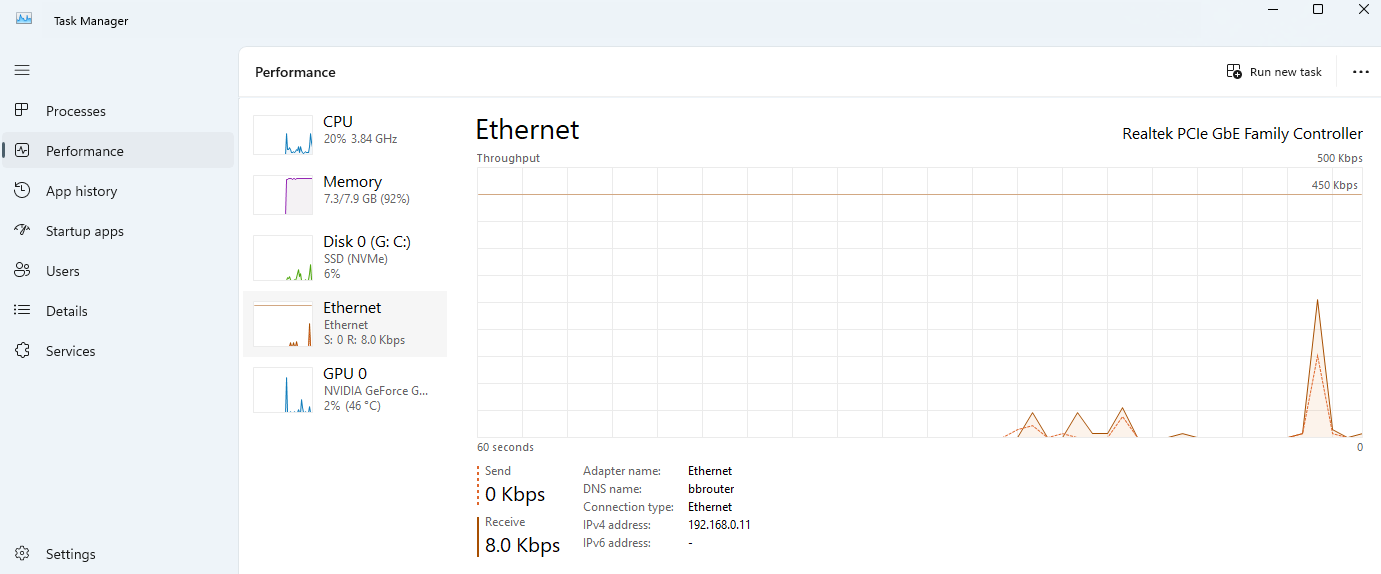
Open Task Manager and watch the screen for changes. If both Task Manager and other windows flicker then drivers are likely at fault according to standard diagnostics. The test takes seconds yet reveals widespread problems clearly. Many people rely on it first when pursuing a Windows screen flickering repair.
Try Safe Mode to Separate Issues
Boot into Safe Mode to load only essential drivers and test stability. Flickering stopping in Safe Mode points to software conflicts while continued flicker indicates hardware faults. This clear division helps prioritize fixes efficiently. People often discover the root cause here during how to fix screen flickering efforts.
What Is Screen Flickering Anyway?
Screen flickering means rapid flashing, dimming, or unstable visuals on your display. It strains eyes quickly during normal tasks and appears as constant blinking or color shifts that disrupt focus. Users notice it most in bright rooms. The issue affects productivity so a proper screen flickering fix becomes essential.
Main Reasons My Screen Flickers
Both software and hardware issues can cause flicker on any device.
- Outdated drivers break communication between the system and display hardware.
- Wrong refresh rate forces the panel into unstable operation.
- Buggy apps interfere during multitasking and resource sharing.
- Loose cable interrupts consistent signal flow to the screen.
- Overheating or GPU damage creates persistent visual errors. Each matters because it dictates your monitor flickering solution path.
Outdated or Corrupted Drivers
Old or broken graphics drivers often cause flicker on Windows machines. They disrupt communication between the operating system and hardware so images fail to refresh smoothly. This leads to constant flashing during basic navigation. Updating them restores order and forms the core of most screen flickering fix routines.
Wrong Refresh Rate or Resolution
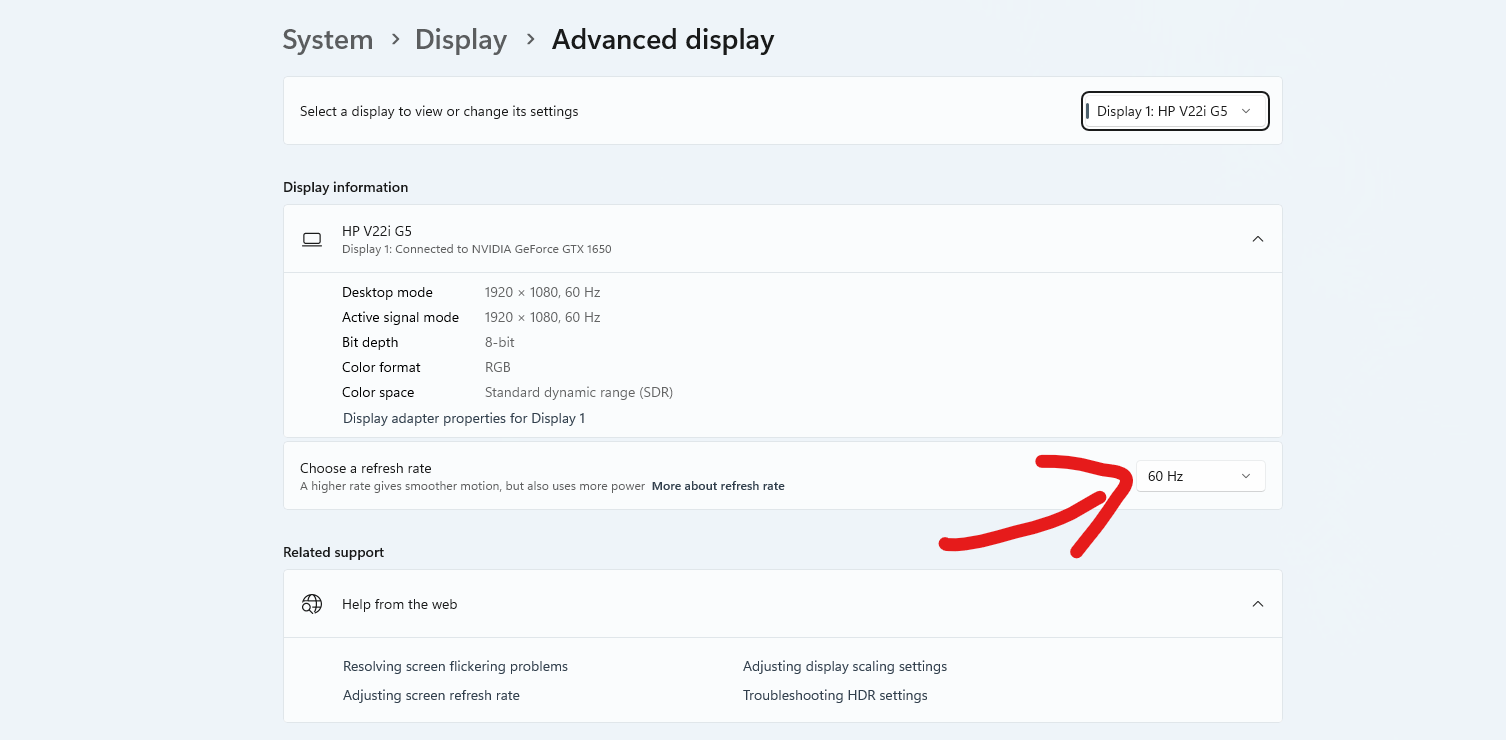
Using an unsupported refresh rate strains the panel noticeably. Mismatched settings cause blinking and distortion because the hardware cannot keep up with demands. Stick to manufacturer recommendations like 60Hz for standard screens. This simple adjustment prevents many cases of Windows screen flickering without extra tools.
Incompatible or Buggy Apps
Some apps conflict with graphics drivers during normal operation. Background programs trigger flicker especially while multitasking or running resource heavy tasks at once. Closing them temporarily confirms the link clearly. Targeting these conflicts delivers a targeted screen flickering fix for affected users.
Loose or Damaged Display Cable
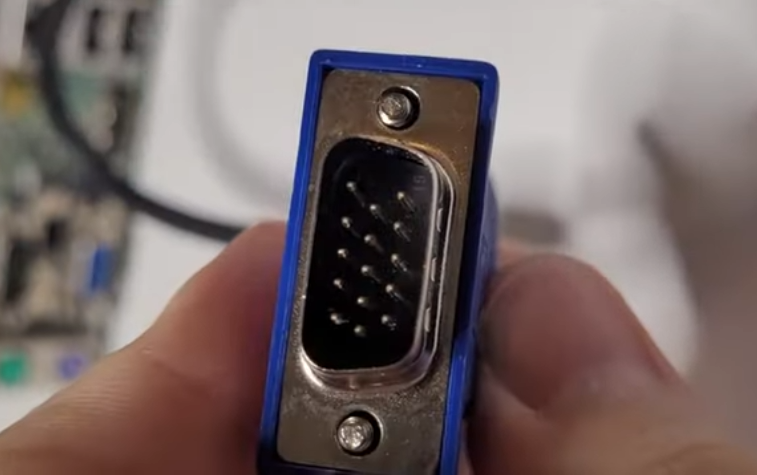
A loose internal cable interrupts the signal without warning. Lid movement often makes flicker appear or disappear which reveals the connection problem immediately. Check ports and wires for wear during routine maintenance. This hardware insight guides effective monitor flickering solution decisions early.
Overheating, GPU Problems, Physical Damage
Excess heat or a failing GPU can cause persistent flicker under load. Dust buildup, heavy workloads, or physical impacts worsen the situation and lead to visual errors plus slowdowns. Monitor temperatures during intensive sessions. Addressing these prevents escalation in your how to fix screen flickering process.
Quick Software Fixes
Most flicker problems yield to software tweaks before hardware work begins.
- Update or reinstall graphics drivers to restore proper signals.
- Change refresh rate and resolution to match hardware needs.
- Disable hardware acceleration in apps to reduce conflicts.
- Uninstall recent or problematic applications that trigger issues.
- Scan for malware or viruses affecting display performance. Each action targets root causes directly in a Windows screen flickering repair.
Update or Reinstall Graphics Drivers

Update drivers through Device Manager or reinstall them completely. This restores proper communication between the system and display hardware so visuals stabilize right away. The process clears corrupted files that trigger flashing. Many resolve their screen flickering fix needs with this single step alone.
Change Refresh Rate and Resolution
Set the display to the recommended refresh rate and resolution immediately. Incorrect settings cause instability because the panel works beyond its designed limits. Access display options to select supported values like 60Hz. This adjustment often ends Windows screen flickering with minimal effort from the user.
Disable Hardware Acceleration in Apps
Turn off hardware acceleration in browsers or problem apps right away. This reduces flicker in specific programs by shifting the rendering load away from the GPU. Test affected software after the change takes effect. The tweak provides a practical monitor flickering solution without full uninstalls.
Uninstall Recent or Problematic Applications
Remove newly installed software that may conflict with your setup. Recent apps can cause glitches because they interfere with driver stability during background activity. Check installation dates to identify suspects quickly. This cleanup forms a reliable part of any how to fix screen flickering strategy.
Scan for Malware or Viruses
Run a full system scan with trusted antivirus software without delay. Malware can interfere with graphics performance and create visual instability across applications. A clean scan restores normal behavior quickly. Regular checks prevent hidden threats from complicating your screen flickering fix attempts.
Basic Hardware Checks
Verify physical connections before seeking any repair service.
- Tighten the display cable and inspect for damage.
- Test with an external monitor to isolate the laptop screen.
- Inspect hinges and physical damage for visible wear.
- Evaluate when to replace screen or seek service after testing. Look for obvious faults that explain the monitor flickering solution needs.
Tighten the Display Cable
Check and tighten the internal or external display cable carefully. A loose cable causes flicker when the lid moves which signals poor contact. Avoid excessive force that might worsen the damage over time. This basic action often delivers an immediate screen flickering fix on laptops.
Test With an External Monitor
Connect to an external monitor to isolate the problem effectively. Normal external display means the laptop screen or cable is faulty yet flicker on both points to GPU trouble. The comparison clarifies the fault location fast. Use this test early in your Windows screen flickering diagnosis.
Inspect Hinges and Physical Damage
Look for worn hinges, cracks, or pressure points around the device. Physical damage often shows as angle dependent flicker that appears only in certain positions. These signs indicate deeper structural issues at play. Noting them helps decide the right monitor flickering solution path forward.
When to Replace Screen or Seek Service
If flicker persists after all checks consider screen replacement or a service centre visit. Authorized technicians handle panel or backlight faults that resist home repairs. Professional assessment prevents further complications down the line. This step protects your device once basic how to fix screen flickering options run out.
Brand‑Specific Tips
Different brands may need special driver or BIOS updates for best results.
- HP laptops benefit from official assistant tools and brightness tweaks.
- Dell, Lenovo, ASUS, Acer run support utilities for full updates.
- Gaming laptops require careful refresh rate and thermal management. Each brand responds differently so tailor your screen flickering fix accordingly.
HP Laptops
Use HP Support Assistant to update graphics drivers, BIOS, and firmware promptly. Disable adaptive brightness because it often creates unnecessary flicker during light changes. The tool streamlines the entire process for consistent performance. Many owners find this approach resolves their Windows screen flickering completely.
Dell, Lenovo, ASUS, Acer
Run the official support tools to handle updates efficiently. These utilities refresh drivers, chipset files, and BIOS while setting the correct refresh rate for stability. The process improves overall compatibility across the system. Follow through to complete a solid monitor flickering solution for these brands.
Gaming Laptops with High Refresh Rates
Set the correct high refresh rate like 120Hz or 144Hz and update GPU drivers regularly. Disable adaptive sync features and check thermal performance because heat spikes create flicker under load. Proper configuration prevents visual disruptions during intense sessions. This keeps your screen flickering fix effective long term.
Windows‑Specific Settings
Windows 10 and 11 have distinct settings worth checking carefully.
- Windows 10 focuses on basic display options and slideshow controls.
- Windows 11 requires advanced display tweaks for variable rates.
- Roll back recent updates if problems appeared after patches. These adjustments target platform specific causes of Windows screen flickering directly.
Windows 10 Settings
In Windows 10 go to Display Settings and set the recommended resolution and refresh rate first. Disable automatic brightness plus background slideshow because both create unnecessary screen flashes during operation. The changes stabilize visuals across applications quickly. Users report strong results from these targeted tweaks.
Windows 11 Settings
In Windows 11 open Advanced Display settings to choose the correct refresh rate right away. Disable variable refresh rate and review app specific graphics preferences because they influence stability. The settings prevent conflicts that lead to flashing. Apply them to strengthen your overall screen flickering fix on newer systems.
Roll Back Recent Updates
If flicker started after a Windows update uninstall the update or roll back the graphics driver safely. Open Update History to select and revert the recent changes without affecting other files. This action reverses problematic patches effectively. Take this route only when timing clearly links the two events.
Prevent Future Flicker
Regular maintenance keeps flicker at bay on all devices.
- Use recommended display settings to avoid strain.
- Keep drivers, BIOS, and Windows updated consistently.
- Handle and clean the screen safely every week. Each habit reduces recurrence and supports lasting monitor flickering solution success.
Use Recommended Display Settings
Always stick to the system recommended resolution and refresh rate for daily use. Unsupported settings plus heavy visual effects push hardware beyond limits and invite instability. Check these values monthly to maintain smooth performance. This practice forms the foundation of preventive how to fix screen flickering care.
Keep Drivers, BIOS, and Windows Updated
Regularly install official driver, BIOS, and Windows updates from trusted sources. Updates improve compatibility and fix bugs that cause visual errors over time. Schedule checks every month for best protection. Consistent attention stops most Windows screen flickering before it starts again.
Handle and Clean the Screen Safely
Avoid pressure on the lid and clean with a microfiber cloth gently. Rough handling strains cables while improper cleaning leaves residue that affects clarity. These habits extend display health significantly. Follow them to maintain results from your earlier screen flickering fix work.
When Ignoring Flicker Is Risky
Occasional flicker may stay minor yet persistent issues signal deeper problems ahead.
- Permanent lines or burn in point to panel wear.
- Random shutdowns linked to flicker suggest instability.
- Color patches combined with lag demand immediate attention. Watch these patterns because they guide when to escalate your monitor flickering solution.
Signs of Serious Hardware Failure
Permanent lines, burn in, or color patches indicate hardware failure clearly. These symptoms worsen with time and affect overall system reliability during normal tasks. Repair becomes necessary to avoid total breakdown. Address them promptly once basic screen flickering fix attempts show no improvement.
Flicker Leading to Data Loss or Shutdowns
If flicker comes with freezes, restarts, or overheating it can cause data loss quickly. Display issues often connect to broader system instability that corrupts files without warning. Monitor for combined symptoms during use. This link highlights why timely action matters in any Windows screen flickering situation.
Back Up Data and Consider Replacement
When fixes fail back up important files and evaluate replacing the laptop entirely. Repair costs versus device value help decide the practical next move after thorough testing. Weigh both factors carefully before acting. This measured approach protects your information once how to fix screen flickering options get exhausted.
Where to Get Professional Help
If you have tried all steps seek an authorized service centre without delay. Professionals diagnose panel or GPU faults accurately and apply manufacturer approved repairs that home methods cannot match. Expect detailed testing followed by clear recommendations. Their expertise delivers final resolution when personal efforts reach limits.
FAQ
Can driver updates fail to stop flickering?
No. Incorrect refresh rate settings or incompatible apps can still cause flicker even after driver updates. Review those elements next because they often remain the hidden cause. This explains why some Windows screen flickering cases need multiple fixes.
Does malware cause screen flickering?
Yes. Malware interferes with system processes and graphics performance until removed. A full scan usually restores normal behavior and eliminates the visual disruptions. Include this check early in your screen flickering fix routine for complete coverage.
Is repairing cheaper than replacing the screen?
Usually. Repair stays cheaper for panel or cable issues yet GPU or motherboard problems may favor full replacement. Compare both options against your device age before deciding on the monitor flickering solution.
Can overheating make the screen flicker?
Yes. Excess heat causes GPU malfunction that leads to flicker, lag, or unexpected shutdowns. Clean vents regularly and improve airflow to prevent recurrence. This maintenance supports long term stability after your initial how to fix screen flickering work.
What are the top software fixes for flickering?
Update drivers, adjust settings, disable hardware acceleration, uninstall problematic apps, and scan for malware.
- Update drivers through official channels first.
- Adjust refresh rate to supported values.
- Disable hardware acceleration where available.
- Uninstall recent apps that trigger issues.
- Scan for malware with current tools. These steps resolve most Windows screen flickering cases effectively.